Our Blog

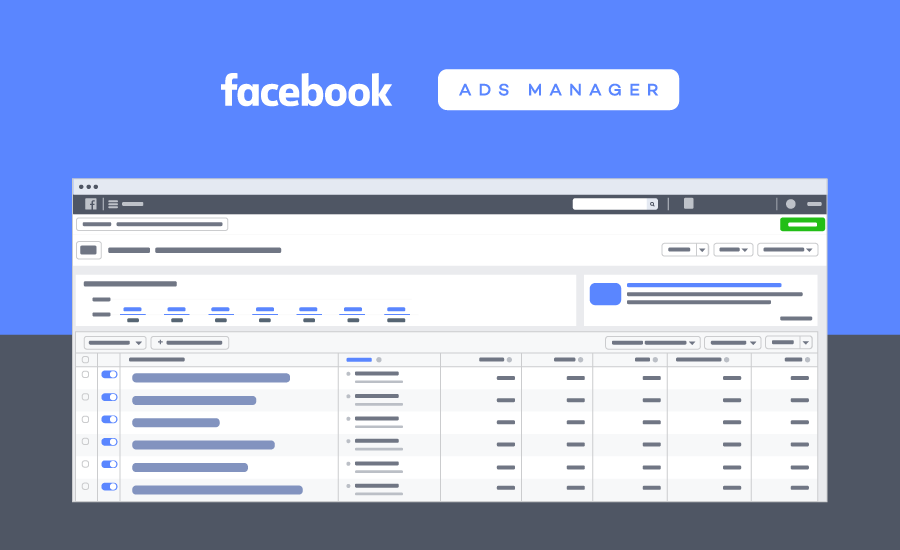
Facebook Ads Manager is a unified ads creation tool where you can create and publish ads to Facebook, Instagram, Messenger or Audience Network. To get started, go to Ads Manager and select Create.

Ad Creation Workflow

When creating ads from scratch, you can choose from two workflows to create and manage your ads:

  1. Guided creation: This option guides you through the steps to create a campaign to completion. Choose this workflow if you are new to Facebook ads and want step-by-step instructions.

  2. Quick creation: This option allows you to set up the campaign and then create ad sets and ads later. Choose this workflow if you are an advertiser with more advanced skills and are already familiar with the creation workflow.

The workflow you choose initially will become the default choice each time you select +Create. You can change this default or switch between the two workflows at any time by clicking the Switch button at the top of the creation flow.

Guided Creation Workflow

Step 1: Campaign

First you have to create a campaign. At this level, you have to define your campaign's overall objective.

  1. Choose an objective from the list best aligned with your business goals.
  2. Enter a descriptive name in the Campaign name field.
  3. You have the option to create a split test at this level.
  4. You have the option to turn on campaign budget optimization at this level.

Step 2: Ad Set

After you have created your campaign, you can move on to creating your ad set. Here, you have to define targeting, budget, schedule, bidding and placement at the ad set level.

  1. Enter a descriptive ad set name in the Ad set name field.
  2. Choose your audience. You can choose audience characteristics such as age, gender, location, interests and more. You can select to save this audience, for future use.
  3. Select your ad placements. This is where you'd like your ads to appear across Facebook, Instagram or Audience Network.
  4. Choose how you want us to deliver ads from the Optimisation for ad delivery drop-down menu.
  5. Set your budget and schedule.

Ad Placements: You can select Automatic placements which shows your ads where they are likely to perform best. You can choose your ad placements manually by selecting Edit placements.

Budget: Set a daily budget, the average amount that you are willing to spend on an ad set per day. Or set a lifetime budget, the amount that you are willing to spend over the entire run-time of your ad set.

Step 3: Ad

After you have created your campaign and at least one ad set, you can move on to creating your ad. Here, you select your ad's creative and add text.

  1. Select your Page. All ads are required to have an associated Facebook Page.
  2. Select an ad format from several ad formats, including: Carousel, single image or video, or collection. You can create a slideshow if you select the single image or video format.
  3. Choose the creative, or media, that you want to use for your ad.
  4. Add the text that you'd like your ad to display.
  5. Preview your ad and select Confirm.

Quick Creation Workflow

Step 1

Fill in your campaign, ad set and ad elements.

  1. Campaign: You have the option to create a new campaign (and choose a buying type and campaign objective), or you can select an existing campaign.

  2. Ad set: if you chose a new campaign, you have the option to create a new ad set or skip this step for now. If you chose an existing campaign, you have the option to select an existing ad set or create a new ad set.

  3. Ad: depending on your campaign and ad set selections, you can either create a new ad or skip this step for now.

Select Save to Draft.

Step 2

In the editing pane, you can edit your campaign elements in any order by selecting the ad, ad set or campaign icons in the left navigational tray.

  1. Campaign: Edit your campaign name, objective or buying type. You also have the option to set a campaign spending limit.

  2. Ad set: Edit your budget, audience, placement and pricing for the ad set. At this step, you can opt to use dynamic creative.

  3. Ad: In the Format section, choose how you'd like your ad to look. You can choose carousel, single image or single video (which also lets you create slideshows), or collection. Some ad format options are dependent on your campaign objective. In the Create ad section you can add creative elements to your ad, such as images, the headline and text. In the Ad name field, enter a name for your ad.

Step 3

After you have edited your campaign details, you have three options:

  1. Select Publish to publish your campaign immediately.

  2. Select Close to save your campaign details as a draft. You can edit and publish your drafts later by selecting Review and publish from the action bar on the main page of Ads Manager.

  3. Select Discard draft to discard all changes.

Campaign budget optimisation (CBO) makes the most efficient use of your budget spending to get you the overall best results, and ensure that the cost of those results align with your bid strategy.

campaign budget is a budget set at the campaign level (rather than the ad set level). The amount you set can apply to each day the campaign runs (daily budget) or over the lifetime of the campaign (lifetime budget).

How it works

CBO uses your campaign budget and bid strategy - which can be, for example, lowest cost per action (CPA) or highest return on ad spend (ROAS) - to automatically and continuously find the best active opportunities for results across your ad sets.

You can create ad sets that have different start and end dates or times, as CBO considers each active ad set's schedule (ads can run all the time or on a schedule). However, CBO may not spend your budget equally for each ad set, as Facebook optimises for your overall campaign budget.

Bid Strategies: Cost Control

Bid strategies are overall approach to spending budget and getting results. The long-term success of your campaign relies on keeping it profitable. It is important to never bid more than an action is worth so that you can maintain profitability.

1. Lowest cost (auto bid)

  • Facebook manages bidding
  • No control over your cost
  • Reach all lowest cost opportunities while spending your budget
  • Want to spend full budget

2. Bid cap

  • Need to spend more time managing bids to control cost
  • May not spend full budget

3. Cost cap (50% availability)

  • When you want to maximise cost-efficiency
  • Minimise your cost when possible without manually adjusting your bids
  • Cost may rise as you run out of cheapest opportunities
  • May not spend full budget once you hit the cap

4. Target cost

  • When you want to maintain a consistent cost
  • Lose out on all cheaper results
  • May not spend your entire budget

Difference between cost cap and target cost

Both bid strategies use an average cost control as a benchmark, but aside from that, they work differently. A cost control using target cost bid strategy is an amount to stay close to even if there are lower cost optimisation events available. A cost control using cost cap bid strategy is an average amount to stay under while still getting the lowest cost optimisation events first.

Difference between cost cap and bid cap

Cost controls using cost cap bid strategy are more flexible, which means they are less likely to constrain delivery than bid controls. Cost controls apply to your average cost per optimisation event, so Facebook can pursue opportunities across auctions at a wider range of costs. Some optimisation events cost more than your cost control, over the lifetime of your ad set your average cost should be at or below your cost control amount.

Bid controls using bid cap bid strategy are less flexible, which means they are more likely to constrain delivery than cost cap. Bid controls limit what Facebook can bid in every auction. You should use a bid control over a cost control only if you have to control the cost of every optimisation event you get.

Before you create an ad, you have to consider what your business goals are. It is important to know what you want to achieve in order to choose the right objective. Your ad objective is what you want people to do when they see your ads.  For example, if you want to show your website to people interested in your business, you can create ads that encourage people to visit your website.

There are three categories of objectives. As your business grows, your campaign goals will change. First, your campaigns may focus on building awareness and acquiring new customers. Later, you may encourage people to make a purchase or sign up for an event.

1. Awareness

Objectives that generate interest in your product or service. Increasing brand awareness is about telling people what makes your business valuable.

  • Brand Awareness: Increase people's awareness of your business, brand or service.

  • Reach: Show your ad to as many people as possible in your target audience.

2. Consideration

Objectives that get people to think about your business and seek more information.

  • Traffic: Drive people from Facebook to any URL you choose, such as your website's landing page, a blog post, or app.

  • Engagement: Reach people more likely to engage with your post. Engagement includes likes, comments and shares but can also include offers claimed from your Page.

  • App Installs: Send people to the shop where they can download your business's app.

  • Video Views: Share videos of your business with people on Facebook most likely to watch it.

  • Lead Generation: Collect leads for your business. Create ads that collect info from people interested in your product, such as sign-ups for newsletters.

  • Messages: Connect with people on Facebook, communicate with potential or existing customers to encourage interest in your business.

3. Conversions

Objectives that encourage people interested in your business to buy or use your product or service.

  • Conversions: Encourage people to take a specific action on your business's site, such as having them to add items to a cart, download your app, register for your site, or make a purchase.

  • Catalogue Sales: Show products from your e-commerce store's catalogue to generate sales.

  • Store Traffic: Promote your brick-and-mortar business locations to people that are nearby.

Custom Audience made from a customer list is a type of audience you can create to help build your reach. It is made of information, called identifiers. that you have collected about your customers such as email address, phone number and address. You provide this information to Facebook.

When you create a Custom Audience from your website, you have several options to customise it.

  • Website Custom Audiences
  • Mobile app Custom Audiences
  • Custom Audiences from a customer list
  • Engagement Custom Audiences

Website Custom Audiences

Custom Audiences from your website is a targeting option that matches people who visit your website with people on Facebook, using the Facebook pixel. You can then create an ad to show to that audience.

You can create a Custom Audience from your website for any group of visitors that like to reach with targeted Facebook ads. For example, you can run a campaign to reach people who visited a product page but didn't complete a purchase to encourage them to go back to the website to do so. Or, you can create an audience of everyone who's visited your website in the past 30 days.

Customer List for Custom Audience

To make a Custom Audience from a customer list, you provide information about existing customers that is matched with Facebook profiles. The customer list can either be a CSV or TXT file that includes identifiers such as email, phone number, address.

Lookalike Audience

When you are ready to grow your business, you can use your Custom Audience to create a Lookalike Audience. A Lookalike Audience is a way to reach new people who are likely to be interested in your business because they're similar to your best existing customers.